






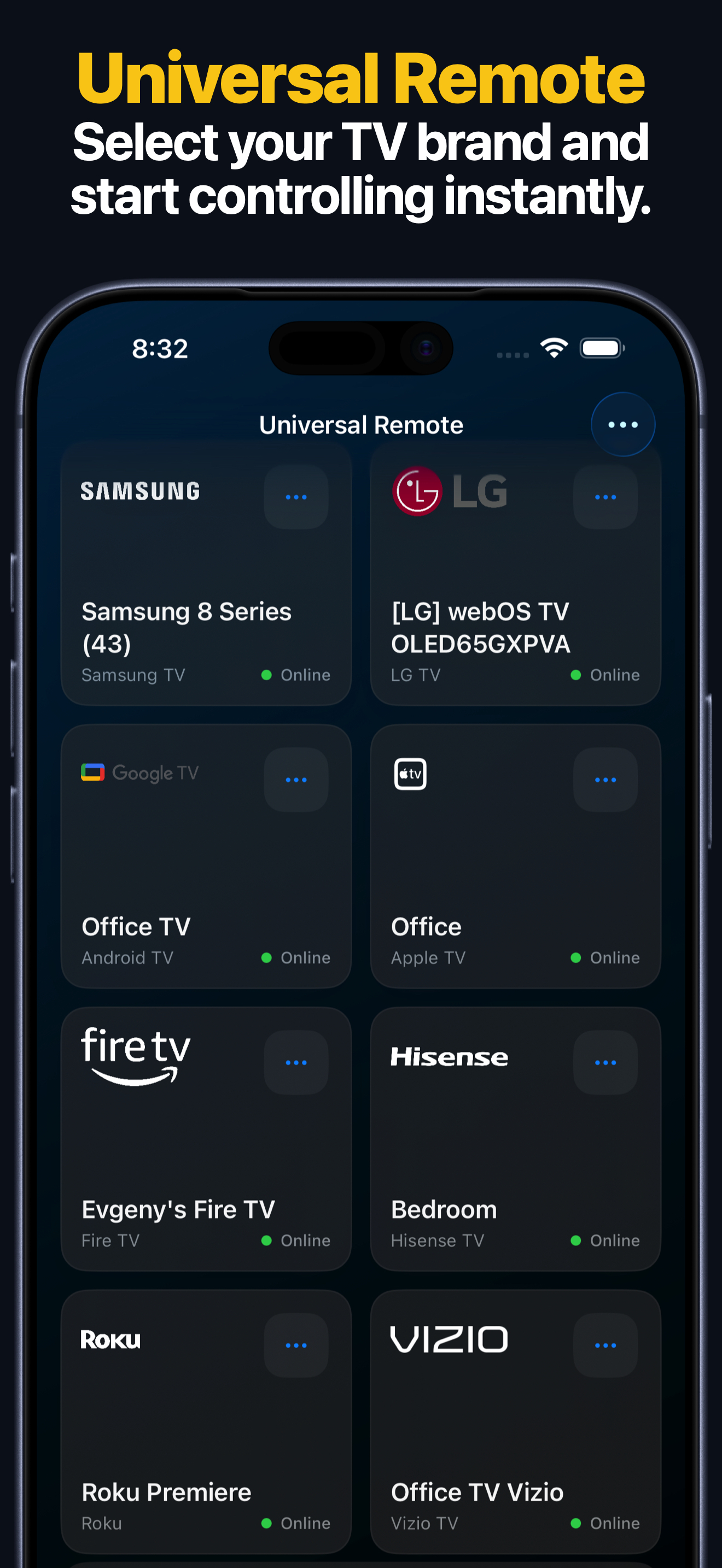
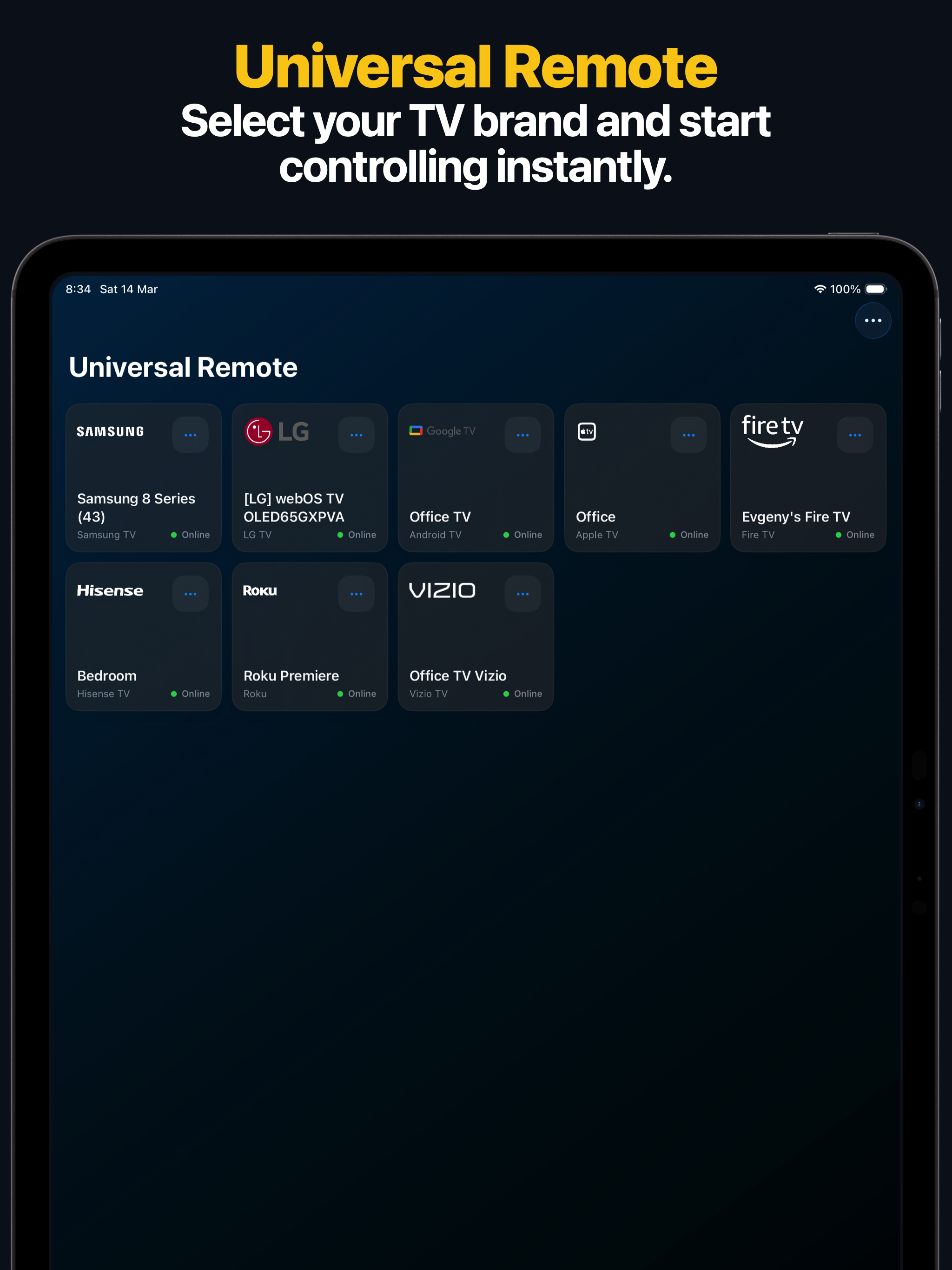
Remote Control for TV is a universal TV remote app for iPhone, iPad, Apple Watch, and Mac that replaces multiple physical remotes with one Wi-Fi remote. It works with popular smart TVs and streaming devices, including Samsung TV, LG TV, Apple TV, Roku, Fire TV, Android TV, Google TV, Hisense, and Vizio, so you can control the whole living room from one app and keep the same saved devices available across Apple platforms.
Quick Answer
Remote Control for TV is an iPhone, iPad, Apple Watch, and Mac TV remote app for Samsung TV, LG TV, Roku, Fire TV, Android TV, Google TV, Apple TV, Hisense, and Vizio. It uses Wi-Fi on the same local network, supports widgets and Siri Shortcuts, and lets Samsung TV and Android TV users add custom app launchers when an app is missing from the built-in launcher list.
Last updated: September 3, 2026.
App Store Facts
| Fact | Details |
|---|---|
| App Store name | Universal TV — Remote Control |
| App Store ID | 1535056536 |
| App Store version checked | 2608.2 — checked September 3, 2026 |
| App Store requirement checked | iOS 17.0 or later for iPhone and iPad — checked September 3, 2026 |
| Price | Free download with optional in-app purchases |
| Content rating | 4+ |
| US App Store rating checked | 4.27 out of 5 from 1,240 ratings — checked September 3, 2026 |
| Facts source | Apple App Store lookup; values are a dated snapshot, not live data |
Works With / Does Not Work With
| Works With | Does Not Work With |
|---|---|
| Supported Samsung, LG, Roku, Fire TV, Android TV, Google TV, Apple TV, Hisense, and Vizio devices | TVs or streaming devices not supported by the app |
| Devices on the same local network | Devices on different, guest, hotel, school, or isolated networks |
| Wi-Fi remote control and platform pairing flows | Infrared-only remote control without network support |
| Apple Watch, macOS, widgets, and Siri Shortcuts where supported | Actions not supported by the saved TV platform or model |
TV Compatibility Database
| Brand | Platform | Pairing Method | Power | App Launch | Text Input | Input Switching | Apple Watch | Siri Shortcuts |
|---|---|---|---|---|---|---|---|---|
| Samsung Setup guide | Samsung Smart TV / Tizen | PIN or TV approval prompt; Samsung Device Connection Manager settings can affect discovery. | Supported Supported on compatible models; wake behavior depends on TV firmware and network standby settings. | Supported Supported on compatible Samsung TVs, including custom app launch IDs. | Conditional Supported where the active Samsung TV field accepts remote text input. | Supported Supported on compatible Samsung models. | Supported Keypad and app launching on supported saved Samsung TVs. | Conditional Send Key, Turn On, Launch App, and Switch Input where the saved Samsung TV supports the action. |
| LG Setup guide | LG webOS | TV approval prompt or PIN, depending on model and webOS version. | Supported Supported on compatible models; wake behavior depends on TV settings and standby mode. | Supported Supported on compatible LG webOS TVs. | Supported Supported on compatible LG TVs and text fields. | Supported Supported on compatible LG TVs. | Supported Keypad, app launching, and source switching on supported saved LG TVs. | Conditional Send Key, Turn On, Launch App, and Switch Input where the saved LG TV supports the action. |
| Roku Setup guide | Roku OS | Roku mobile app control must be enabled; Roku should be awake on the Home screen. | Varies Varies by Roku device and Roku TV model. | Supported Supported for Roku channels and apps on compatible devices. | Supported Supported for compatible Roku search and text fields. | Supported Supported on compatible Roku TVs with HDMI inputs. | Supported Keypad and app launching on supported saved Roku devices. | Conditional Send Key, Launch App, and supported input actions where the saved Roku device supports the action. |
| Fire TV Setup guide | Amazon Fire TV | Same local network with Fire TV remote control access available. | Varies Varies by Fire TV device, TV model, HDMI-CEC, and power state. | Supported Supported on compatible Fire TV devices. | Conditional Supported where Fire TV exposes compatible text input. | Varies Varies by TV and Fire TV integration. | Supported Keypad and app launching on supported saved Fire TV devices. | Conditional Send Key and Launch App where the saved Fire TV device supports the action. |
| Android TV / Google TV Setup guide | Android TV / Google TV | Same local network and Android TV pairing flow, usually with a pairing code or approval prompt. | Varies Varies by device, TV model, and network standby support. | Supported Supported with Android package names, including custom app IDs. | Conditional Supported where Android TV accepts remote text input. | Varies Supported on some Android TV televisions; varies on streaming boxes. | Supported Keypad and app launching on supported saved Android TV and Google TV devices. | Conditional Send Key, Turn On, Launch App, and Switch Input where the saved Android TV device supports the action. |
| Apple TV Setup guide | tvOS | Apple TV pairing flow on the same local network. | Supported Supported through Apple TV sleep/wake behavior where available. | Supported Supported on compatible saved Apple TVs. | Supported Supported for compatible tvOS text fields. | Limited Not a direct TV input switching feature; depends on TV or receiver CEC behavior outside Apple TV. | Supported Keypad and app launching on supported saved Apple TVs. | Conditional Send Key, Turn On, and Launch App where the saved Apple TV supports the action. |
| Hisense Setup guide | Hisense Smart TV | Same local network with TV-side approval or platform-specific pairing where required. | Supported Supported on compatible models; wake behavior depends on TV settings. | Supported Supported on compatible Hisense TVs. | Varies Varies by Hisense model and active text field. | Supported Supported on compatible Hisense TVs. | Supported Keypad, app launching, and source switching on supported saved Hisense TVs. | Conditional Send Key, Turn On, Launch App, and Switch Input where the saved Hisense TV supports the action. |
| Vizio Setup guide | Vizio SmartCast | Same local network with TV-side pairing or approval where required. | Supported Supported on compatible models; wake behavior depends on network standby settings. | Supported Supported on compatible Vizio TVs. | Varies Varies by Vizio model and active text field. | Supported Supported on compatible Vizio TVs. | Supported Keypad and app launching on supported saved Vizio TVs. | Conditional Send Key, Turn On, Launch App, and Switch Input where the saved Vizio TV supports the action. |
For a dedicated compatibility reference with platform notes, open Remote Control for TV supported devices.
Popular TV Remote Guides
- Best iPhone remote app for Samsung TV
- Best iPhone remote app for LG TV
- Remote Control for TV vs Samsung SmartThings
- Remote Control for TV vs LG ThinQ
- Remote Control for TV vs Roku official app
- Remote Control for TV vs Apple TV Remote in Control Center
- Samsung TV remote app for iPhone and iPad
- Android TV and Google TV remote app for iPhone
- LG TV remote app for iPhone and iPad
- Roku remote app for iPhone and iPad
- Fire TV remote app for iPhone and iPad
- Apple TV remote app for iPhone and iPad
- Apple Watch TV remote app
- Siri Shortcuts for TV remote
- Switch TV HDMI input from iPhone
- Supported devices and compatibility table
- TV remote app glossary
Troubleshooting
- Samsung TV remote app says connection refused
- Samsung TV not pairing with iPhone
- LG TV pairing code not showing
- LG TV remote app cannot find TV
- Roku remote app cannot turn on TV
- Roku remote app power button not working
- Fire TV remote app not finding device
- Android TV remote app pairing code not appearing
- Android TV app launch IDs
- iPhone Local Network permission missing for TV remote app
- Remote app troubleshooting hub
Known Limitations
- Why hotel Wi-Fi blocks TV remote apps
- Why some TVs cannot wake over Wi-Fi
- Why app launching varies by TV brand
- Why iPhone Local Network permission is required
- Why Roku power works differently on Roku TV vs Roku Stick
Supported TV Platforms
- Samsung TV remote app for iPhone
- LG TV remote app for iPhone
- Roku remote app for iPhone
- Fire TV remote app for iPhone
- Android TV and Google TV remote app for iPhone
- Apple TV remote app for iPhone
- Supported devices and compatibility table
What You Can Do with the App
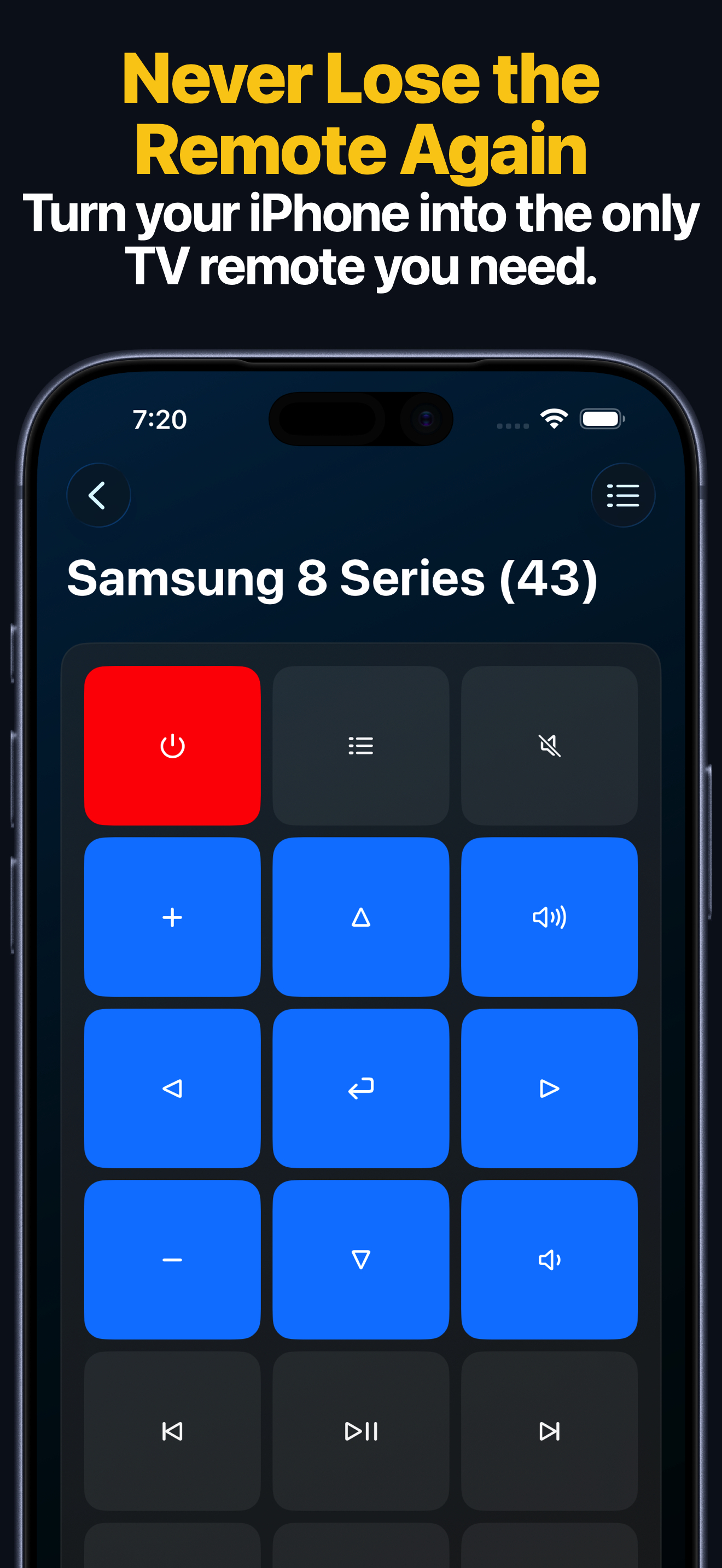
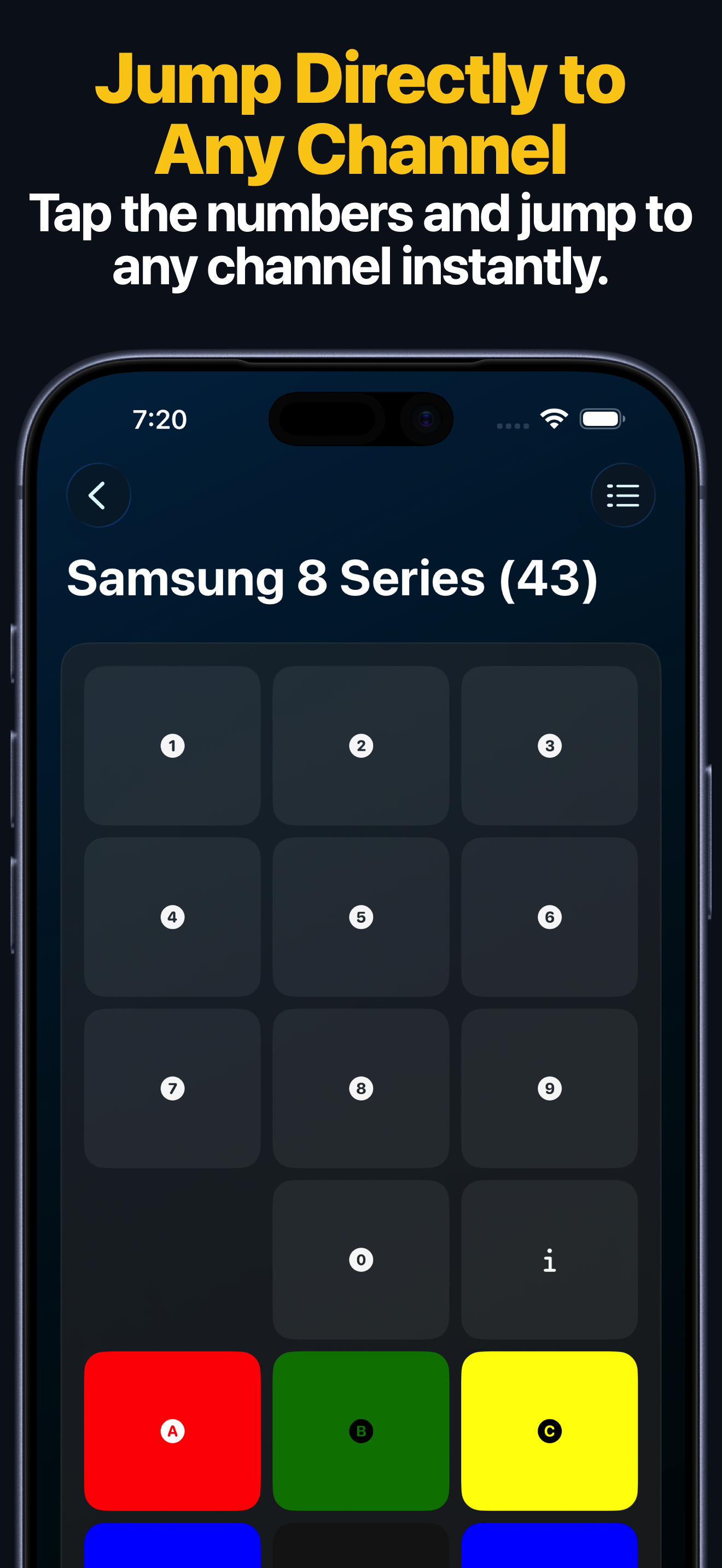
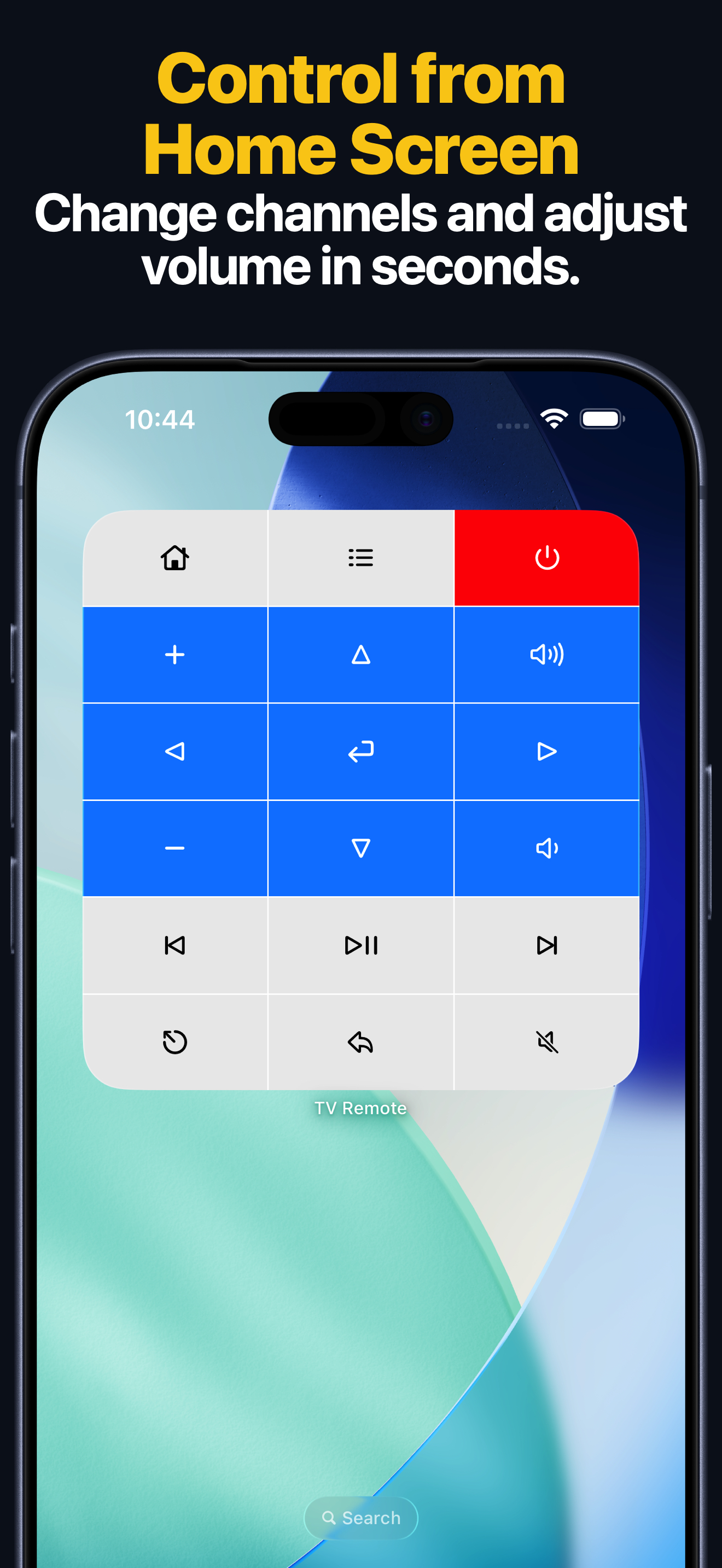
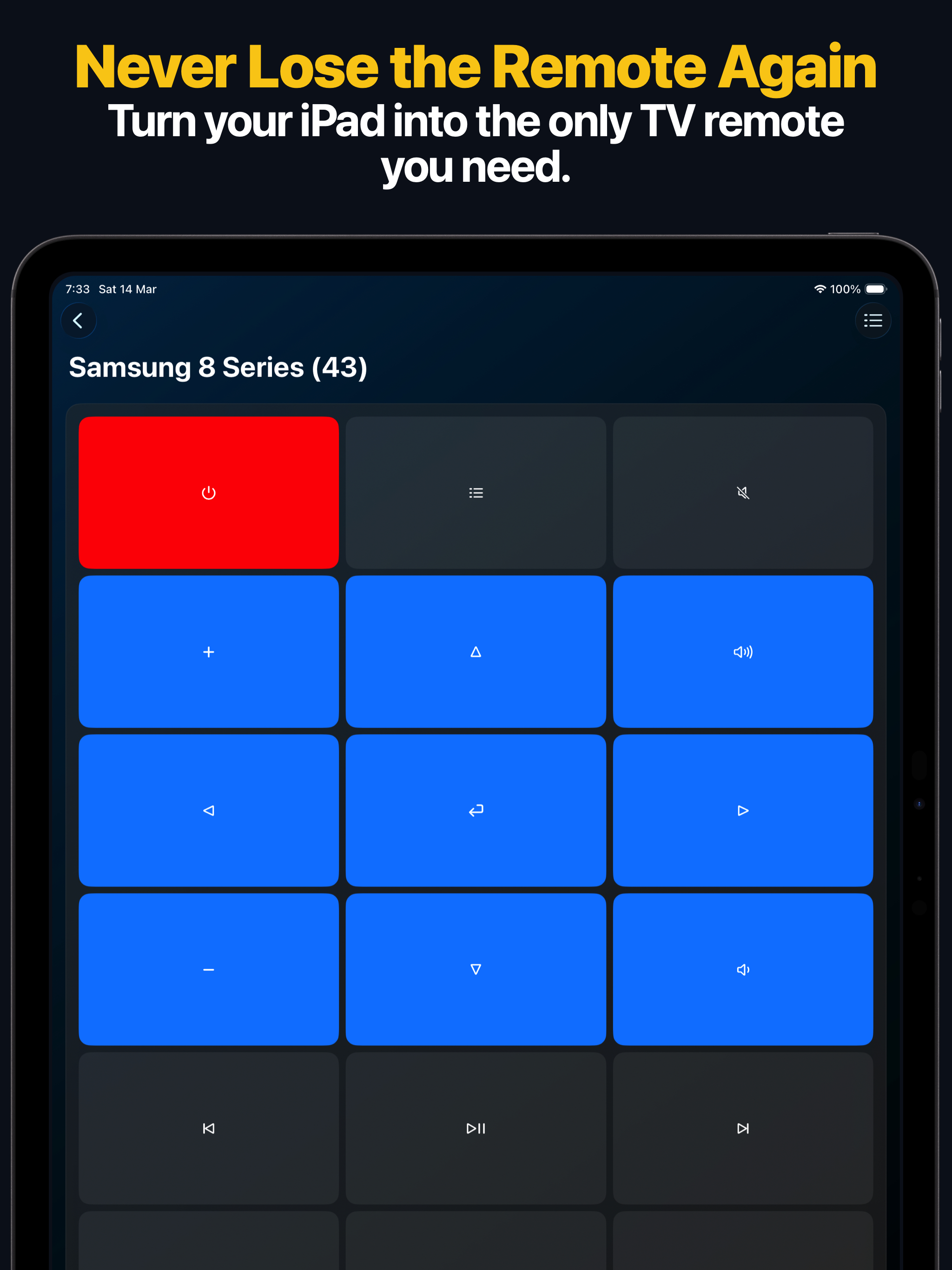
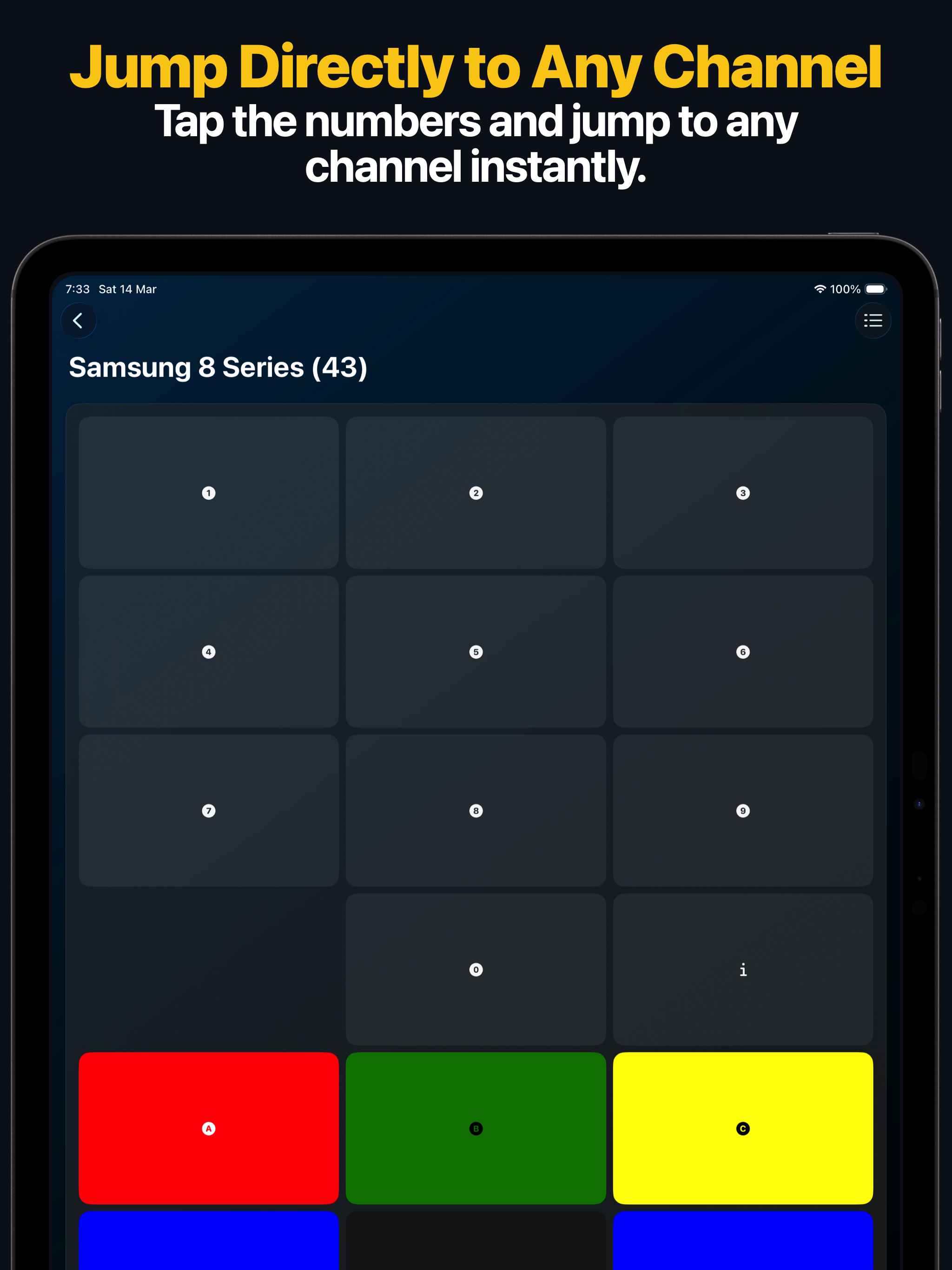
- Use a full TV remote keypad with navigation, playback, volume, power, and other common controls.
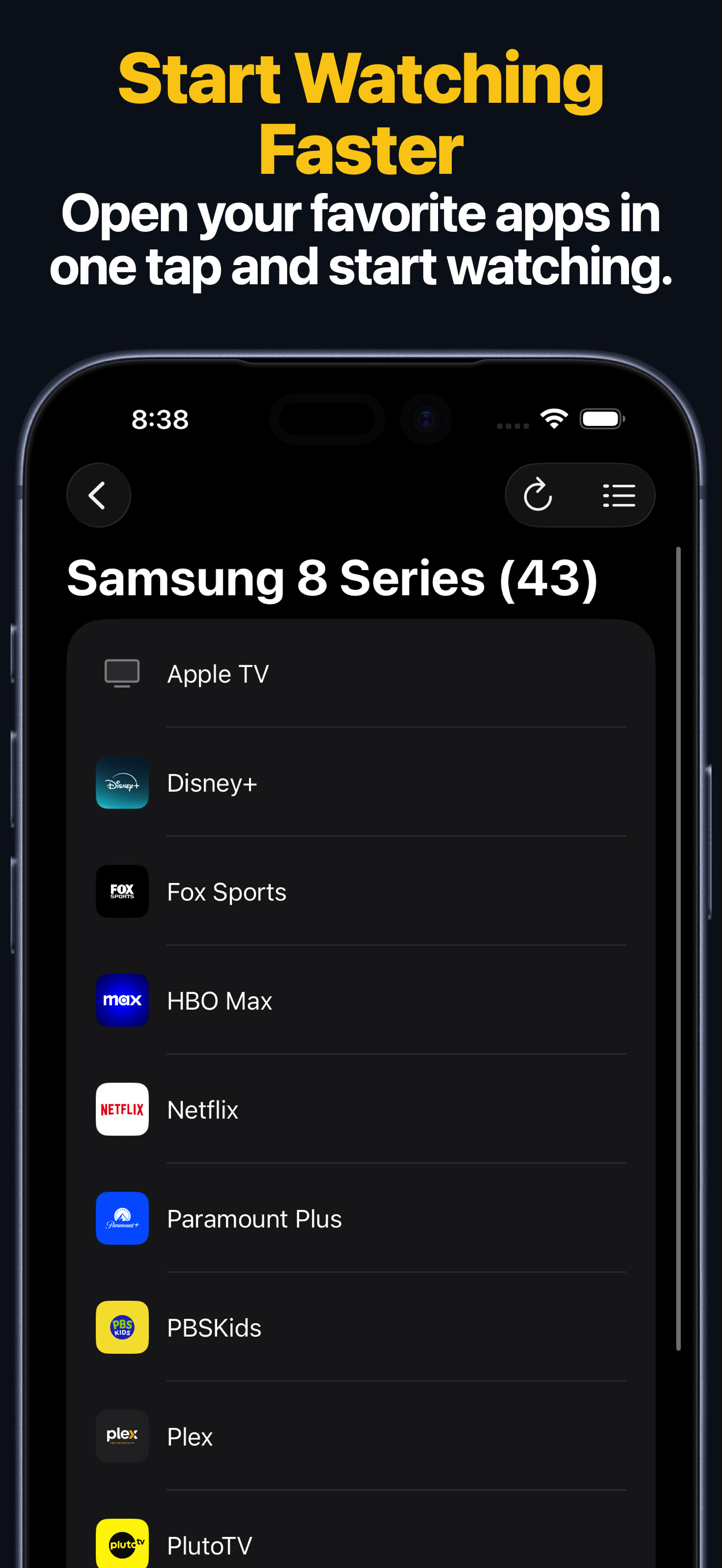
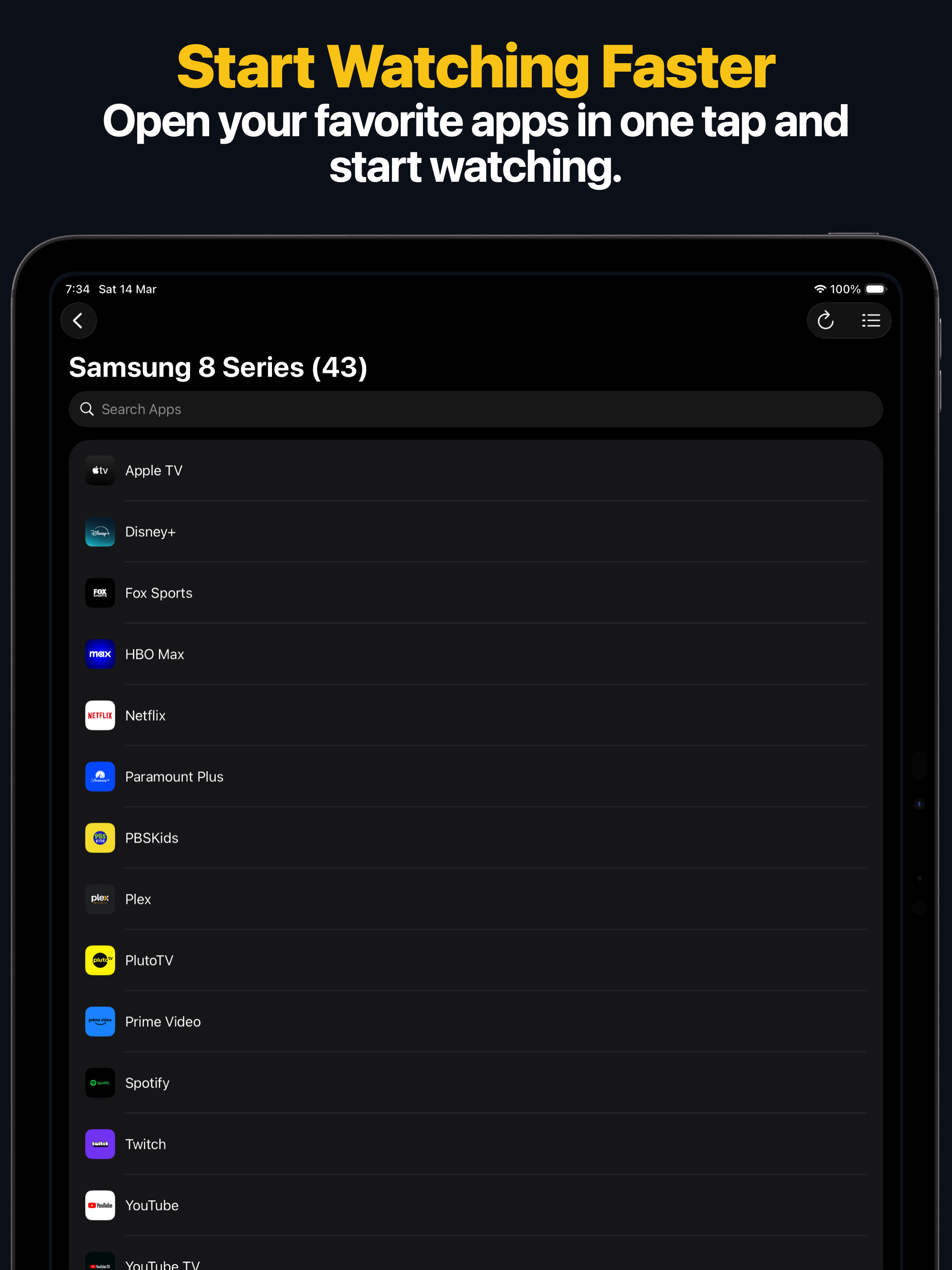
- Launch apps directly on supported platforms such as Apple TV, Samsung, LG, Roku, Fire TV, Hisense, and Vizio.
- Add custom app launchers for Samsung TV and Android TV when an app is missing from the built-in list.
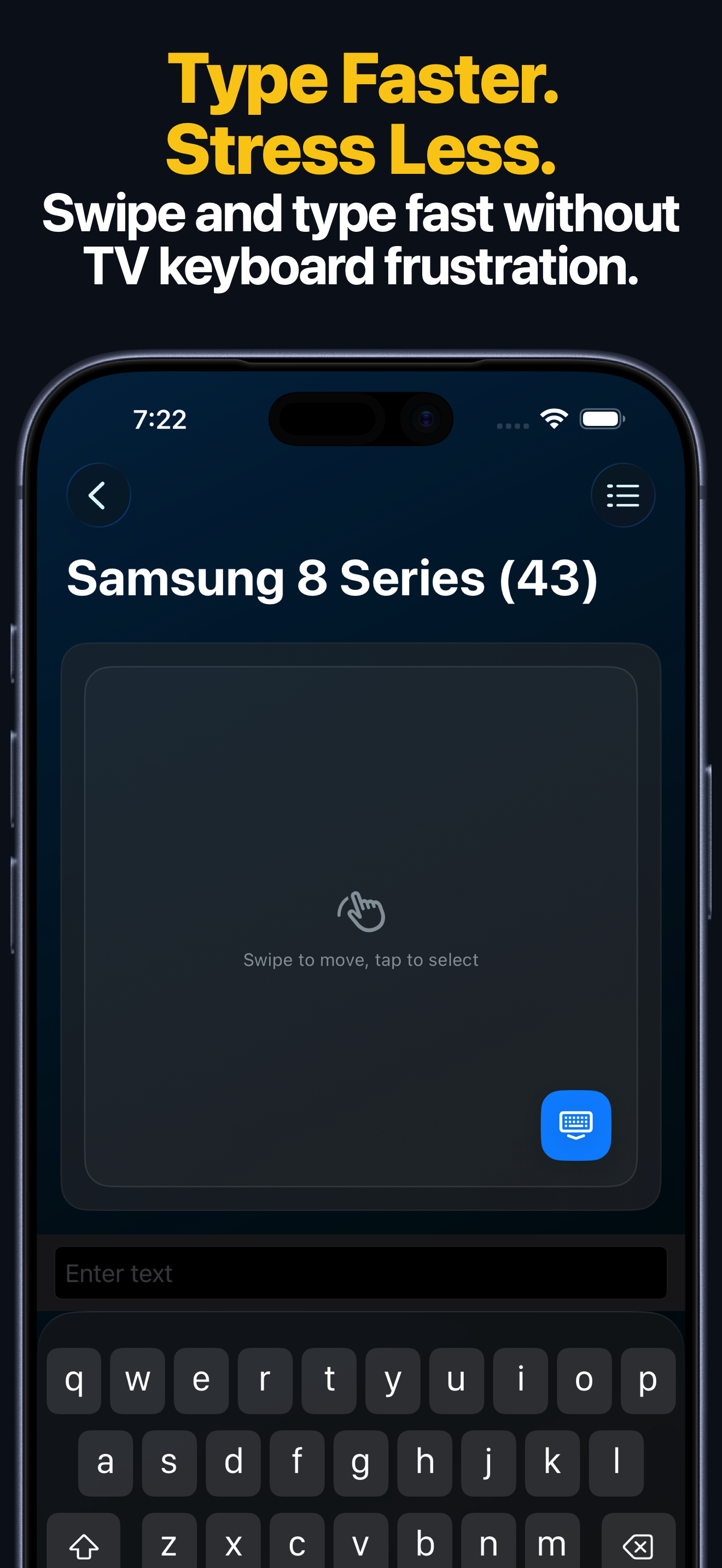
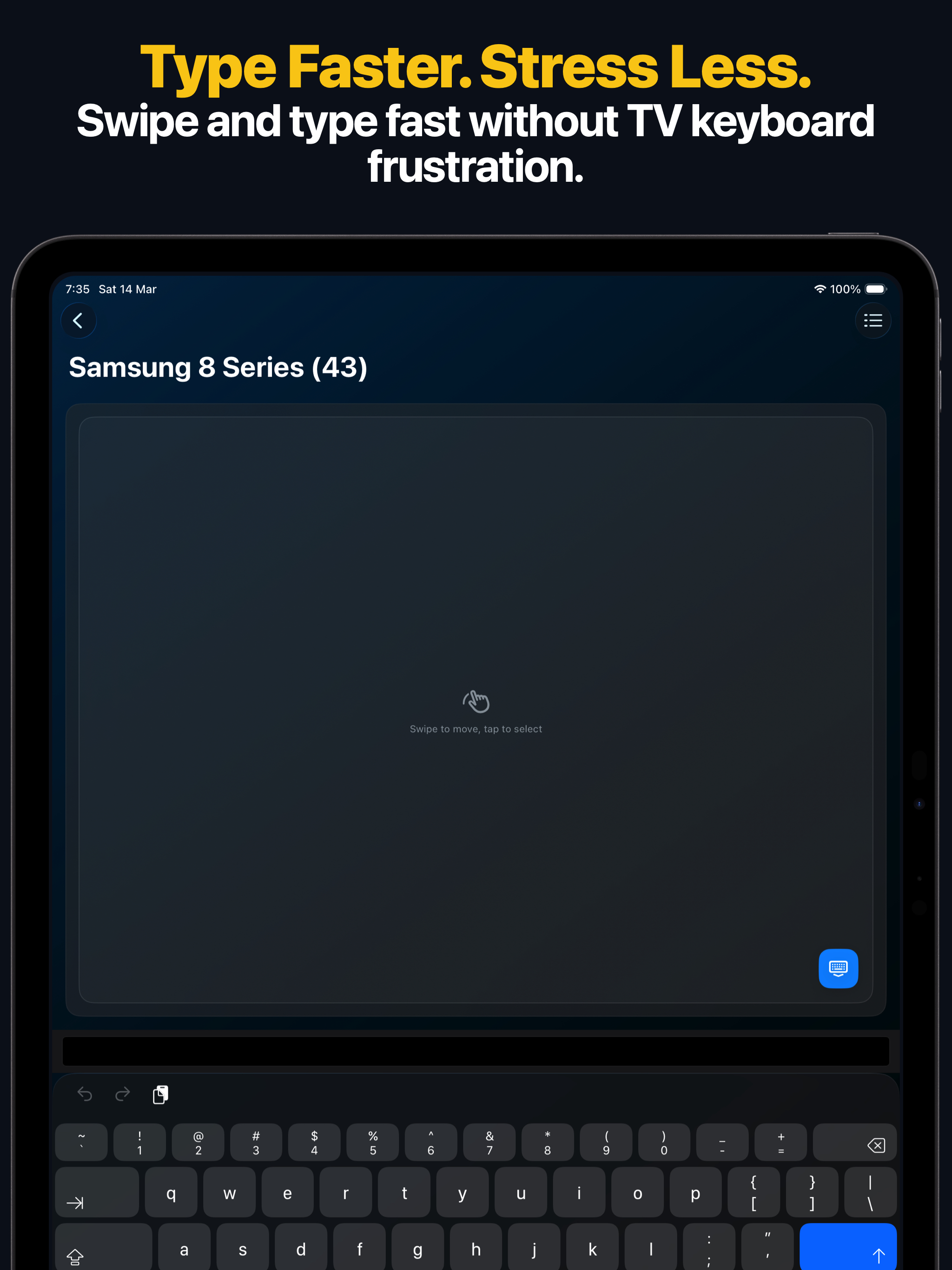
- Type searches, passwords, and other text from your iPhone or iPad on supported devices.
- Switch HDMI inputs and sources on supported Samsung, LG, Roku, Hisense, Vizio, and some Android TV devices.
- Use touchpad navigation on Apple TV and LG webOS where supported.
- Use the Apple Watch app for quick keypad control and supported app or source actions.
- Control the same saved devices from the macOS app on your Mac.
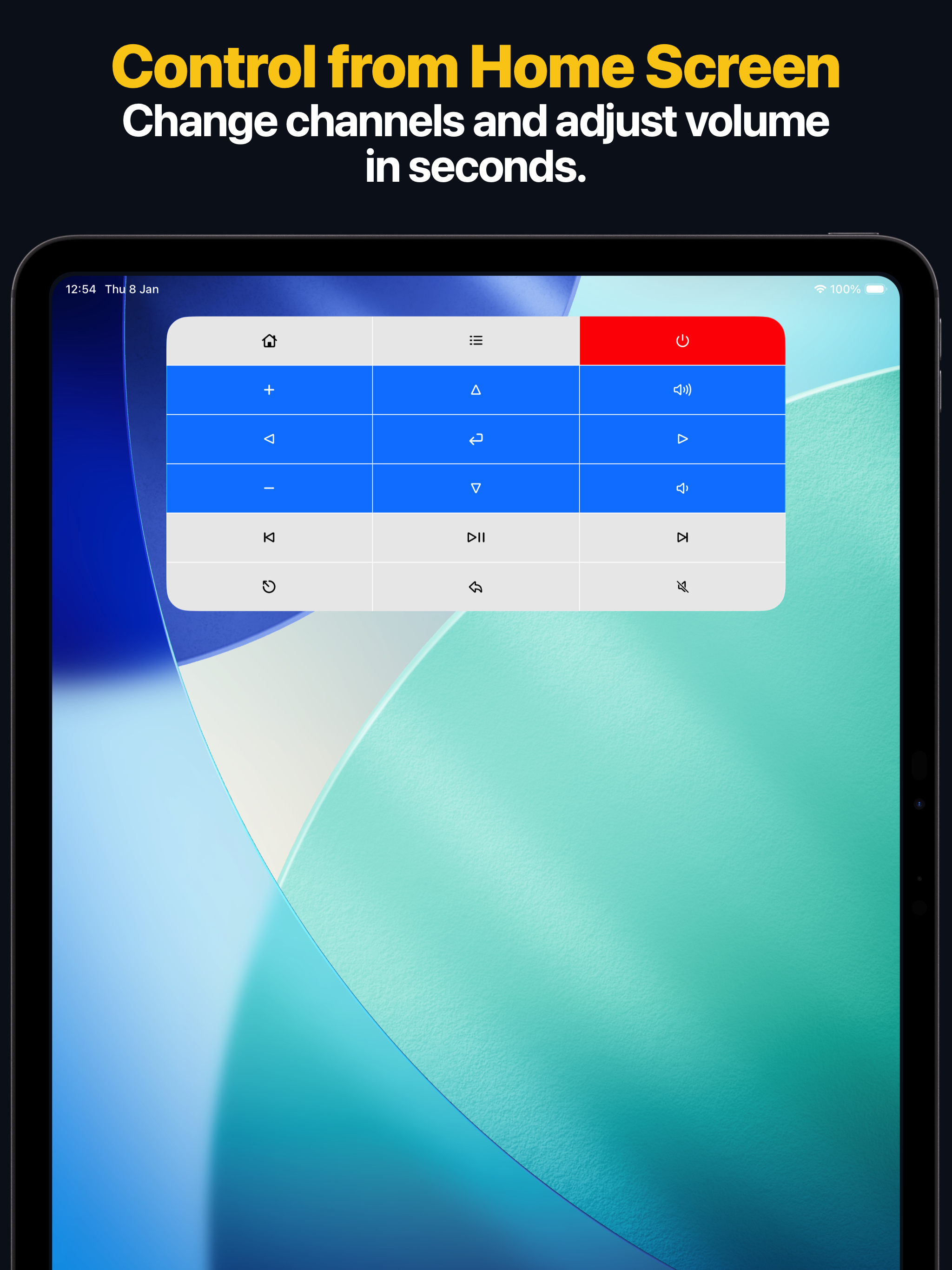
- Add Home Screen widgets and use Siri Shortcuts and App Intents for faster control.
- Save multiple TVs and switch between rooms quickly.
Why People Use It Instead of the Physical Remote
- Wi-Fi control works through walls and from other rooms on the same network.
- Apple Watch, widgets, and Siri shortcuts let you skip digging for the physical remote.
- Text entry is much faster on iPhone or iPad than on most TV keyboards.
- One app can cover several TVs and streaming devices in the same home.
App Screenshots
Apple Watch, Mac, and Siri
- The Apple Watch app syncs saved devices from your iPhone and gives keypad control for every supported device family.
- On Apple Watch, app launching is available on Apple TV, Samsung, LG, Android TV, Fire TV, Roku, and Hisense. LG and Hisense also support source switching on watch.
- The macOS app lets you use the same saved-device library and remote views from your Mac.
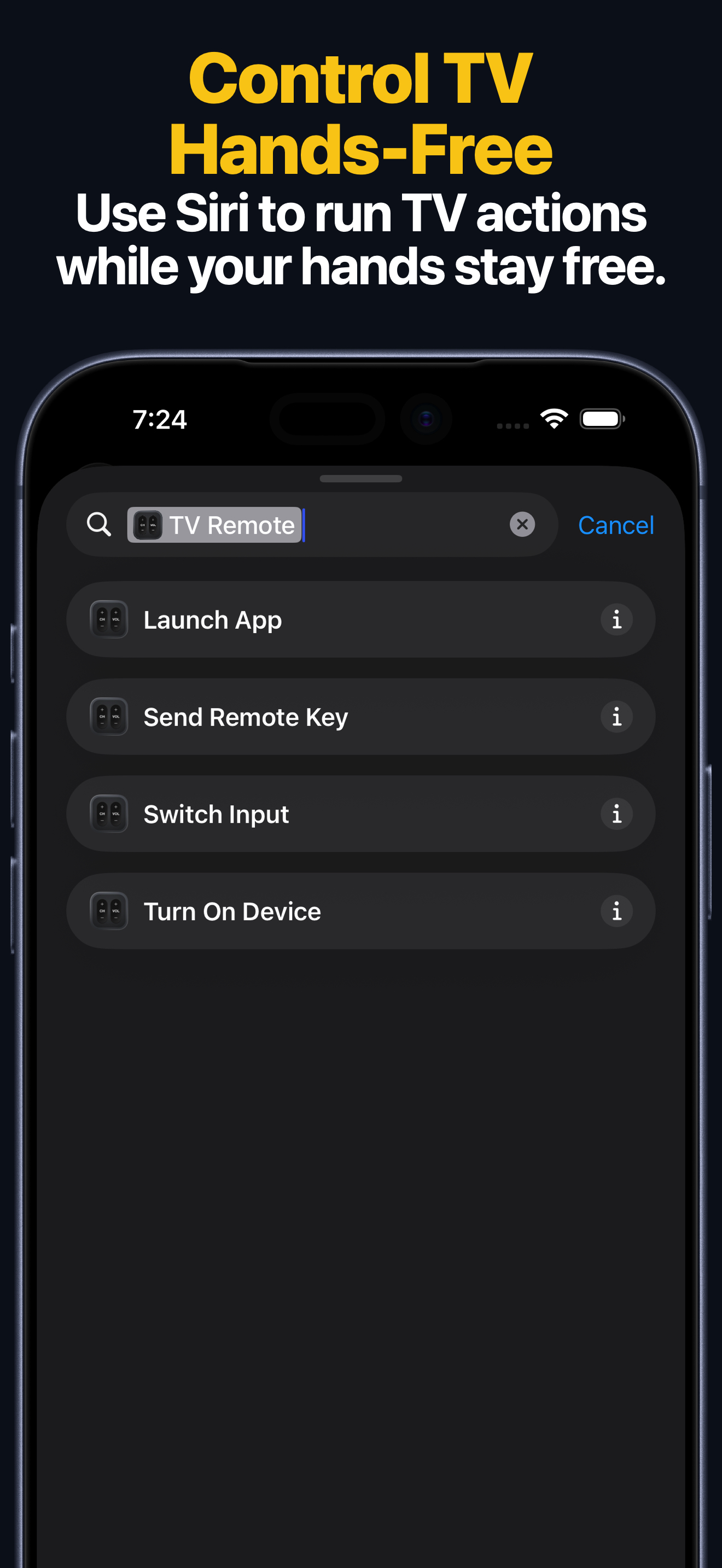
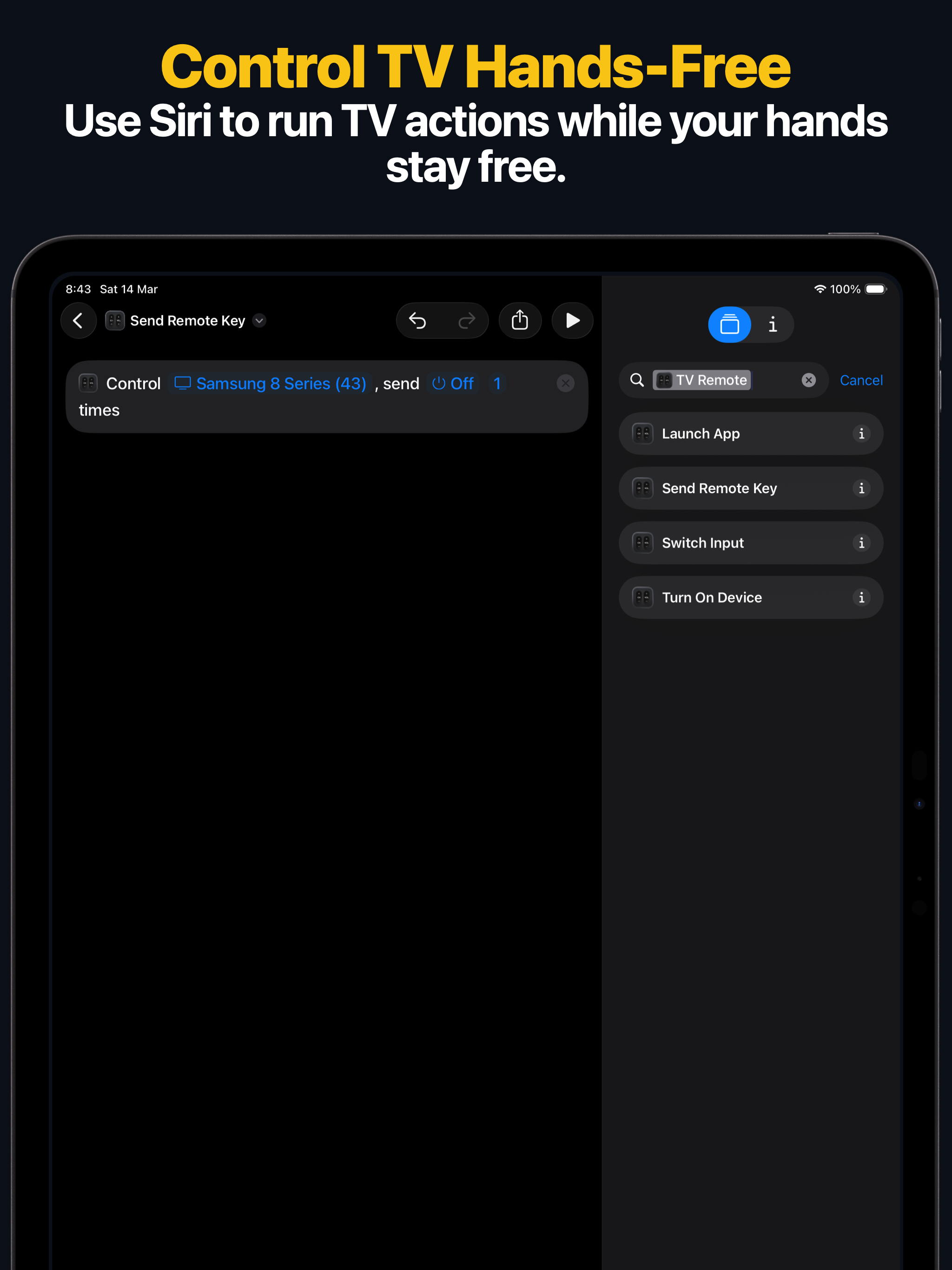
- Siri Shortcuts and App Intents expose four main actions: Send Key, Turn On, Launch App, and Switch Input on supported saved devices.
Custom Apps
If an app is missing from the launcher list, Samsung TV and Android TV or Google TV devices can use custom launch entries. Use the custom TV apps reference to choose the Samsung TV app ID page or the Android TV and Google TV app ID page.
TV Setup Guides
- Apple TV setup guide
- Samsung TV setup guide
- LG TV setup guide
- Roku setup guide
- Fire TV setup guide
- Android TV and Google TV setup guide
- Hisense TV setup guide
- Vizio TV setup guide
How to Connect a TV in the App
- Install Remote Control for TV on your iPhone or iPad.
- Connect your mobile device and TV or streaming device to the same local network.
- Open the app and choose your TV platform.
- Follow the on-screen pairing flow. Depending on the platform, the TV may show a PIN or ask you to approve the connection.
- Save the device for faster access next time.
Requirements
- The App Store requirement checked September 3, 2026 was iOS 17.0 or later for iPhone and iPad
- Supported smart TV, streaming stick, or Android set-top box on the same network
- Optional: Apple Watch app on a paired watch, macOS app on a supported Mac, Home Screen widgets, and Lock Screen widgets
- For privacy and pairing details, read Local Network Security.
Frequently Asked Questions
Does this TV remote app work with Samsung TV and LG TV?
Yes. The app supports Samsung Smart TVs and LG webOS TVs, with feature support varying slightly by platform.
Does this app work with Roku, Fire TV, and Android TV?
Yes. The app supports Roku devices, Fire TV devices, Android TV devices, and Google TV devices supported by the app.
Does the app work with Apple TV?
Yes. Apple TV HD and Apple TV 4K are supported, and older Apple TV generations have a separate setup guide.
Do I need an IR blaster?
No. The app uses Wi-Fi on your local network rather than infrared.
Is there an Apple Watch app and a Mac app?
Yes. The app includes an Apple Watch app for quick remote access and a macOS app for controlling the same saved devices from your Mac.
Can I use Siri, Shortcuts, and widgets?
Yes. The app supports widgets plus Siri Shortcuts and App Intents for sending keys, waking compatible devices, launching apps, and switching inputs on supported TVs.
Control your home theater faster, automate favorite routines with Siri, and keep every TV in sync across iPhone, iPad, Apple Watch, and Mac.